
Use DocKit GUI connect to Database Server
DocKit connects to Elasticsearch, OpenSearch, DynamoDB, and MongoDB. Each database type has its own connection form — everything else works the same way.
Install and Open DocKit
you can find detailed instructions on how to install and open DocKit in the installation guide.
Connect to Elasticsearch
Click + and pick Elasticsearch. You need a connection name, the server host (with http:// or https://), and the port (default 9200). If your user has limited permissions, narrow access by specifying an index name.
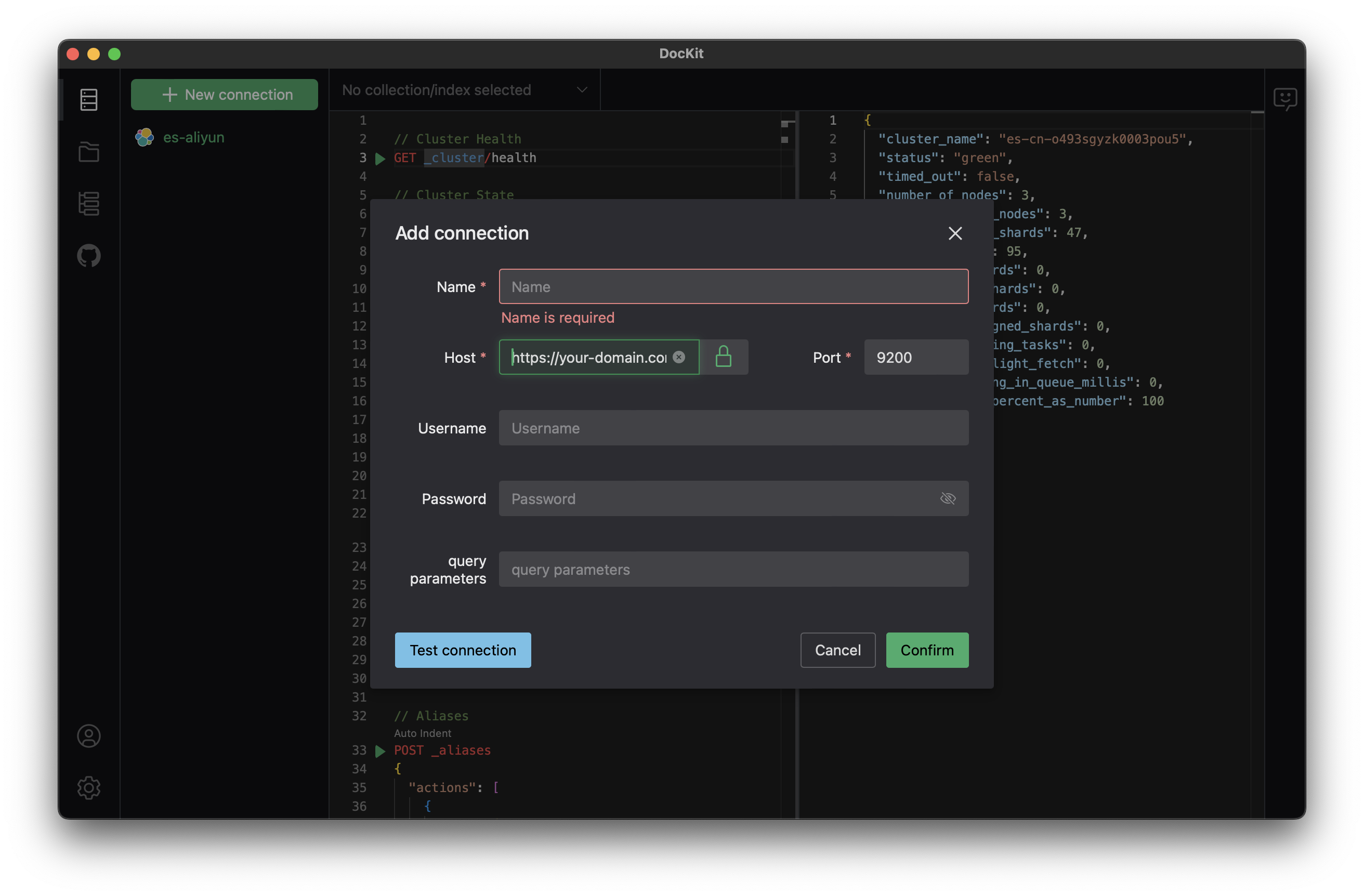
DocKit supports two authentication methods:
Basic Auth — enter your Elasticsearch username and password. Straightforward, works for self-hosted setups and development environments.
API Key Auth — paste the full Elasticsearch API key. Better for production and cloud deployments because keys can be rotated independently of user accounts. Generate one through the Elasticsearch API:
POST /_security/api_key
{
  "name": "dockit-client",
  "role_descriptors": {
    "dockit-role": {
      "index": [
        { "names": ["*"], "privileges": ["read", "write"] }
      ]
    }
  }
}
SSL verification is on by default for https:// connections. Click the lock icon next to the host field to toggle it off — useful for self-signed certs in development, but never disable it in production.
You can also append custom query parameters to every request, like pretty=true for formatted JSON output, timeout=30s for longer timeouts, or preference=_local to route to the local node. Enter them as key=value pairs separated by &.
Connect to OpenSearch
OpenSearch works exactly like Elasticsearch — same host and port format, same auth options (Basic and API Key). DocKit detects whether it's talking to Elasticsearch or OpenSearch automatically from the cluster info.
Connect to DynamoDB
Pick DynamoDB as the database type. There are four authentication methods:
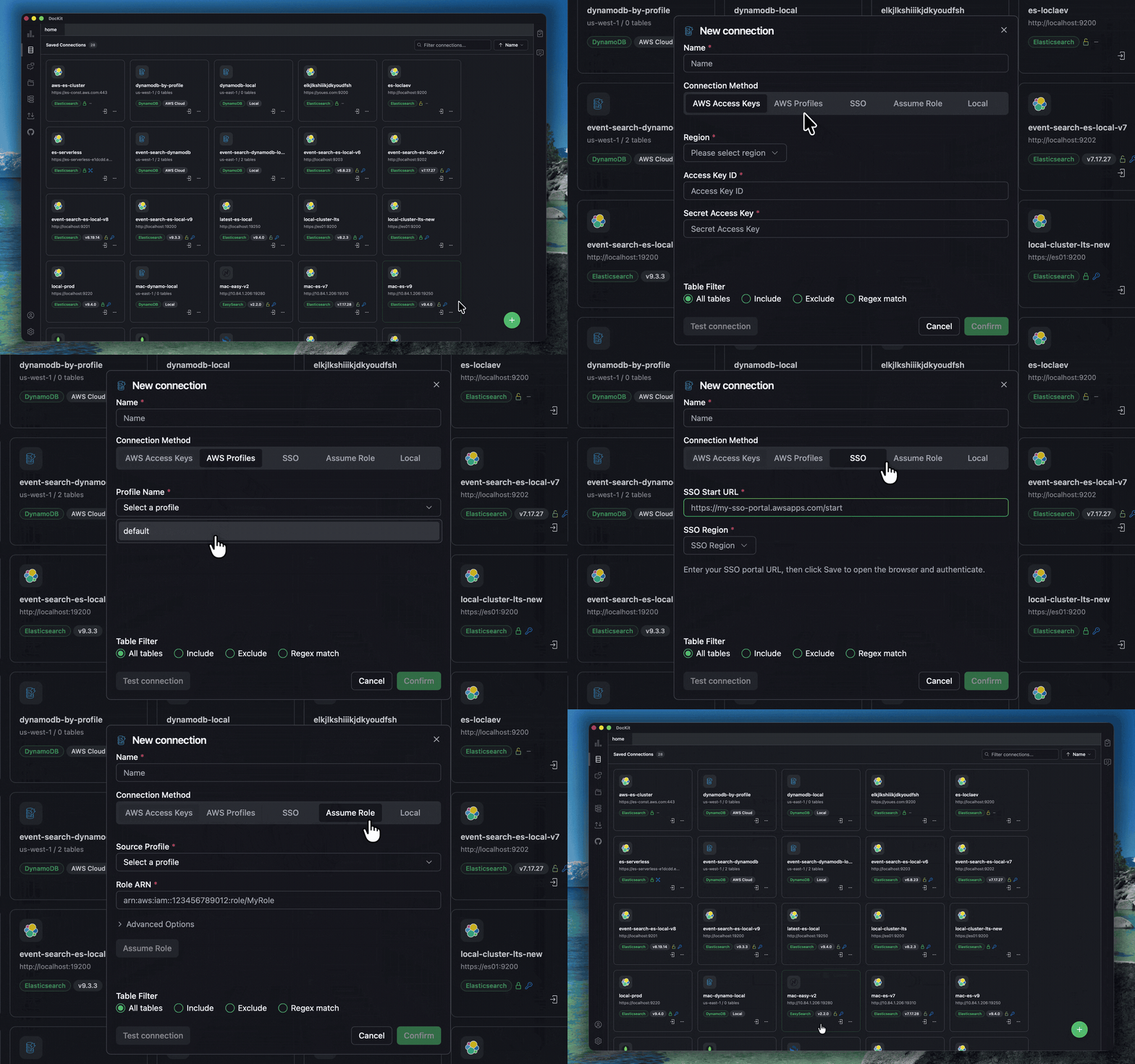
Access Key — the standard approach. Enter your AWS region, access key ID, and secret access key. Works with IAM user credentials, temporary STS credentials, or environment variables.
SSO — uses AWS IAM Identity Center. Click Start SSO Login to open a browser tab for authentication, then pick an account and role from the populated lists. SSO sessions are cached, so you don't need to re-authenticate on every connection.
Profile — reads credentials from ~/.aws/credentials and ~/.aws/config. Pick a profile from the dropdown, and optionally configure an IAM role to assume. Supports standard profiles, source role chains, SSO-based profiles, and MFA-enabled setups.
DynamoDB Local — for offline development. Point DocKit at http://localhost:8000 with any region and dummy credentials. See the DynamoDB Local guide for setup.
Connect to MongoDB
Pick MongoDB as the database type. DocKit supports three ways to connect:
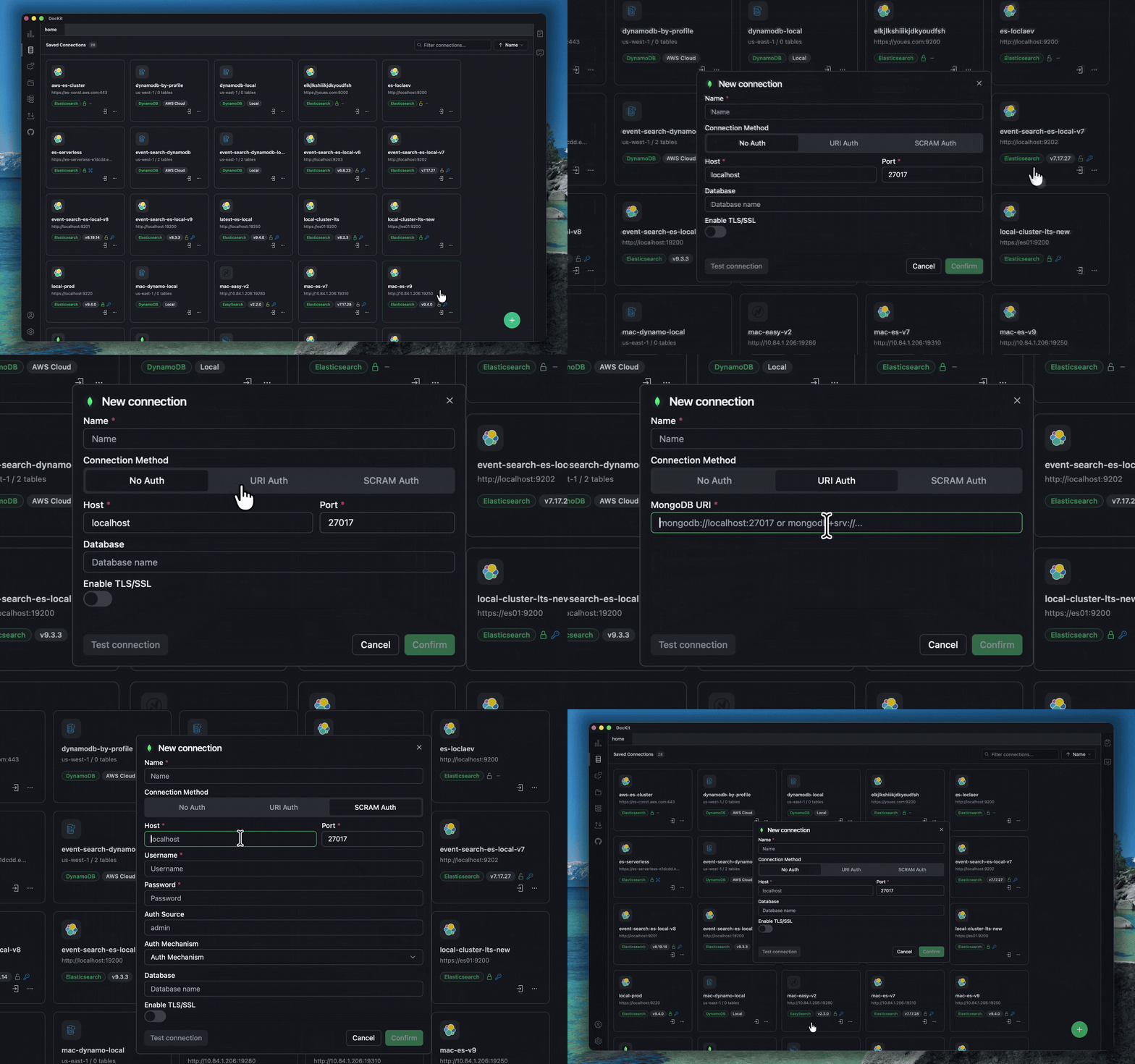
No Auth — for local dev instances. Just enter the host and port. Optionally pick a default database.
SCRAM Auth — standard username and password authentication. Enter host, port, username, and password. The Auth Source field specifies which database holds the user credentials (defaults to admin). You can also set an Auth Mechanism like SCRAM-SHA-256 — leave it empty and the driver negotiates automatically.
URI Auth — paste a full MongoDB connection string for advanced setups like Atlas or replica sets. This mode passes the URI straight through without modification.
All three modes support TLS — toggle it on to append ?tls=true to the connection. Disable for local development with self-signed certs.
Test Connection
Click Test Connection before saving. You need at least view_index_metadata permission. If your user doesn't have * index access, specify an index name.
Common connection errors and fixes:
| Error | Fix |
|---|---|
Connection refused | Check host/port, verify server is running |
Unauthorized | Verify credentials, check API key validity |
SSL handshake failed | Enable SSL or fix certificate |
Index not found | Specify a valid index name |
Save and Manage Connections
Click Confirm to save. Connections are stored locally, show up in the sidebar for quick access, and persist across app restarts.
Managing multiple connections:
- Sort — by name, type, or date created, ascending or descending
- Filter — type to search connections by name
- Edit — right-click → Edit to modify connection settings
- Clone — right-click → Clone to duplicate an existing connection
- Remove — right-click → Remove to delete a connection
Security Best Practices
- Use API keys in production — easier to rotate and audit than user passwords
- Keep SSL enabled — never disable in production
- Least privilege — grant only the index permissions your workflow needs
- Separate connections — use different credentials for dev, staging, and production
- Rotate credentials — regularly update keys and passwords
Next Steps
- Elasticsearch Cluster Management — Monitor indices and nodes
- Import & Export — Move data in and out
- Query History — Access past queries
Questions about connecting: email support@geekfun.club.