
DocKit Monitor and Manage Elasticsearch Cluster
DocKit as a NoSQL GUI client, it supports to monitor and manage Elasticsearch including indices and alias management, nodes management, shards management, and templates management. This document outlines how to monitor and manage Elasticsearch in DocKit.
Install and Open DocKit
You can find detailed instructions on how to install and open DocKit in the installation guide.
Connect to Elasticsearch Server
You can find detailed instructions on how to connect to Elasticsearch Server connection guide.
Monitor & Manage Elasticsearch Cluster
Cluster Management & Monitor
Click the Manage panel to monitor and manage the Elasticsearch cluster, you can view the cluster health, indices, nodes, and shards information as below: 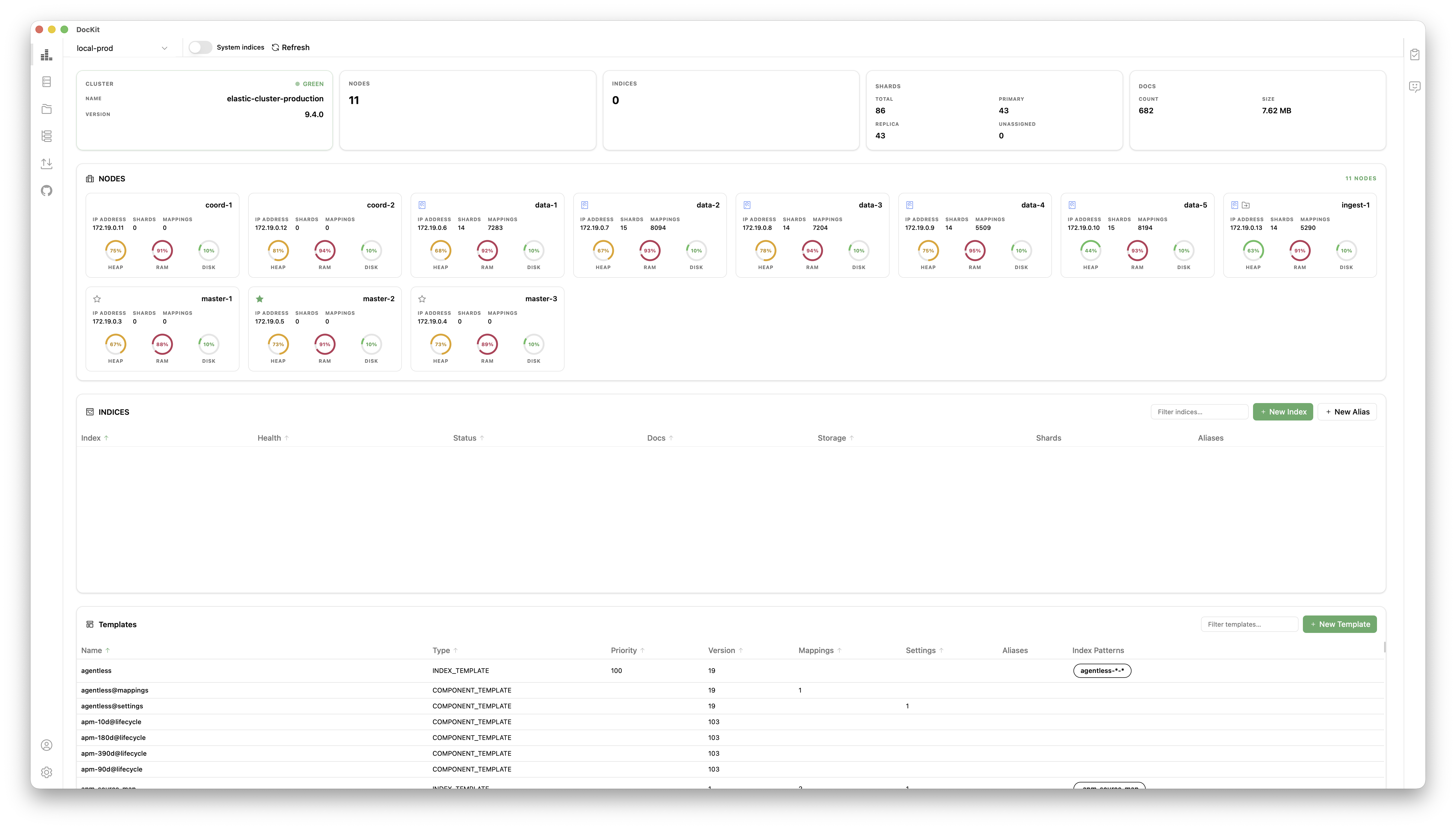 In Cluster page, you can view the cluster health, nodes number, indices number, shards number, and other cluster overview information.
Nodes Management & Monitor
Click the Nodes tab to view the nodes list, you can see the list of nodes, click a node, you can view the node name, IP, disk information, memory usage and other useful node information. 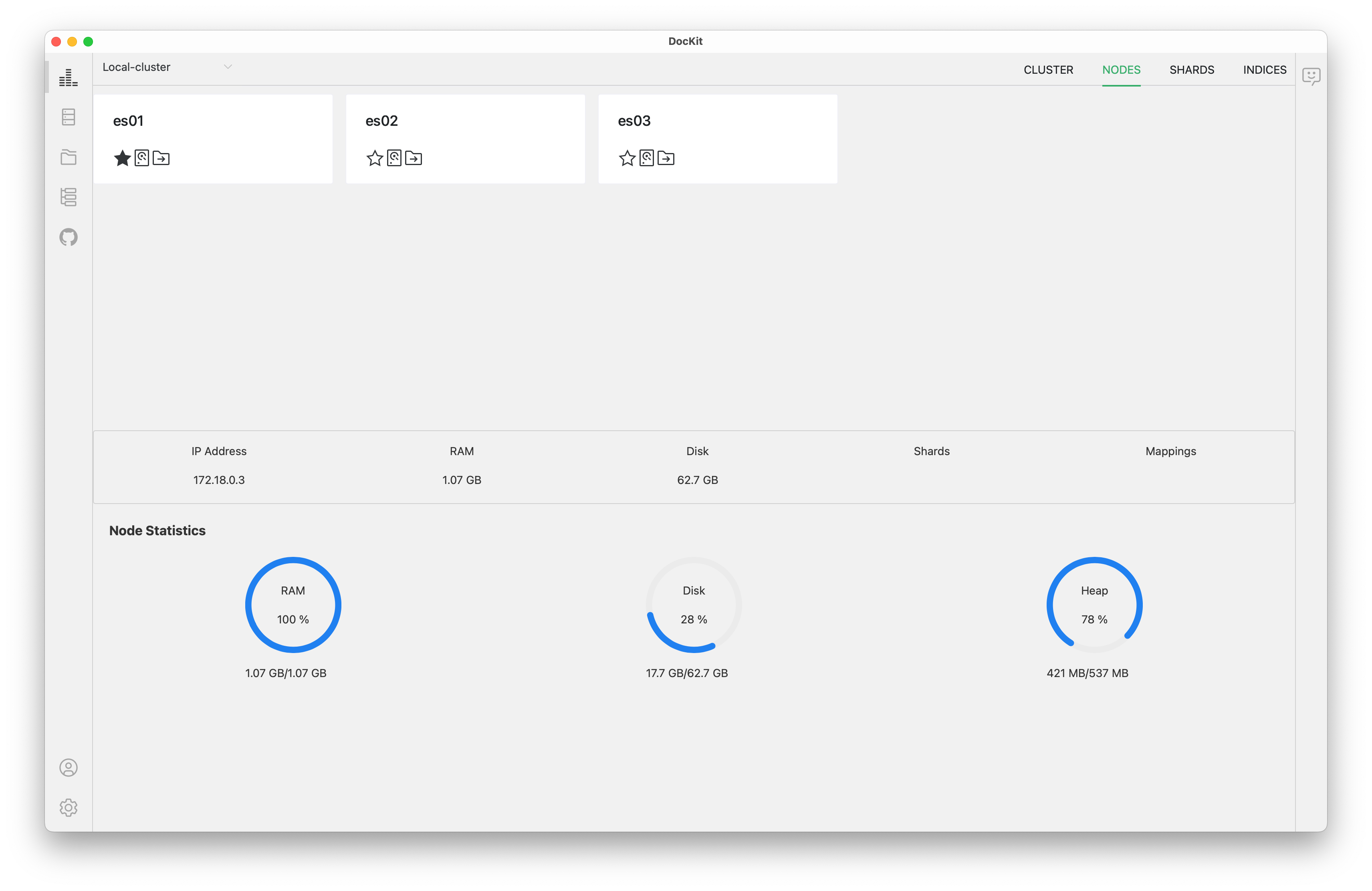
Shards Management & Monitor
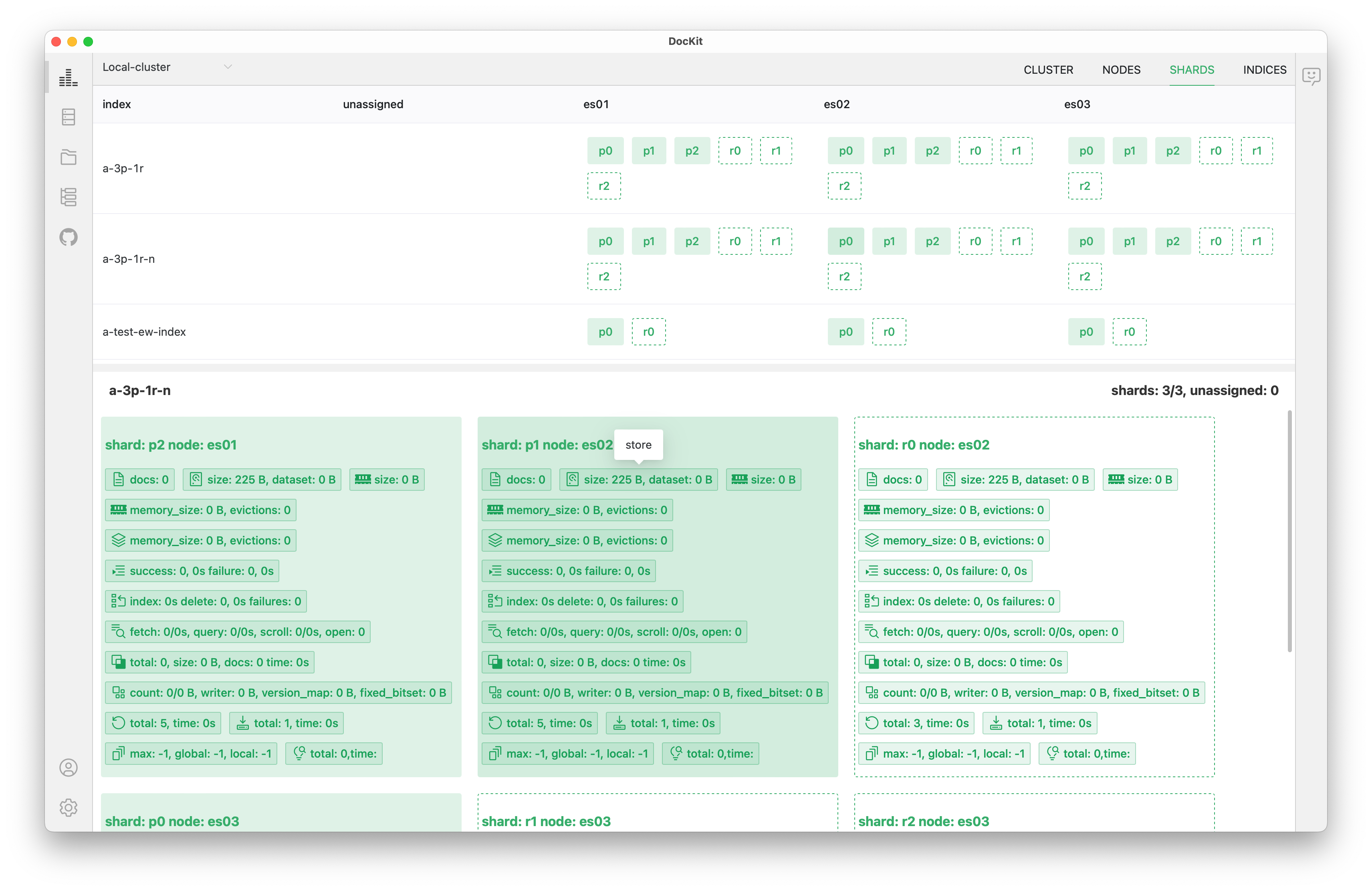
Click the Shards tab to view the shards list, you can view the shard name, index name, state, and other shards related information. Click any shard to open the Shard Detail Panel, which shows:
| Metric | Description |
|---|---|
| Docs Count | Number of documents in the shard |
| Store Size | Storage size in bytes |
| Completion | Suggestion/index completion size |
| Fielddata | Field data memory usage |
| Query Cache | Query cache hit rate and size |
| Get/Search | Get and search operation metrics |
| Indexing | Indexing rate and latency (index, delete, update) |
| Merge | Segment merge statistics |
| Refresh/Flush | Refresh and flush operation metrics |
| Segments | Segment count, memory, and version map |
| Suggest | Suggestion operation metrics |
This detail panel helps diagnose performance bottlenecks at the shard level.
Alias Management
From the Indices view, manage aliases per index:
- Create Alias: Add an alias pointing to the current index, with optional filter and routing
- Switch Alias: Atomically move an alias from one index to another (zero-downtime reindexing)
- Remove Alias: Delete an alias without affecting the underlying index or data
Aliases allow you to query abstract names that can be remapped without application changes.
Indices Management & Monitor
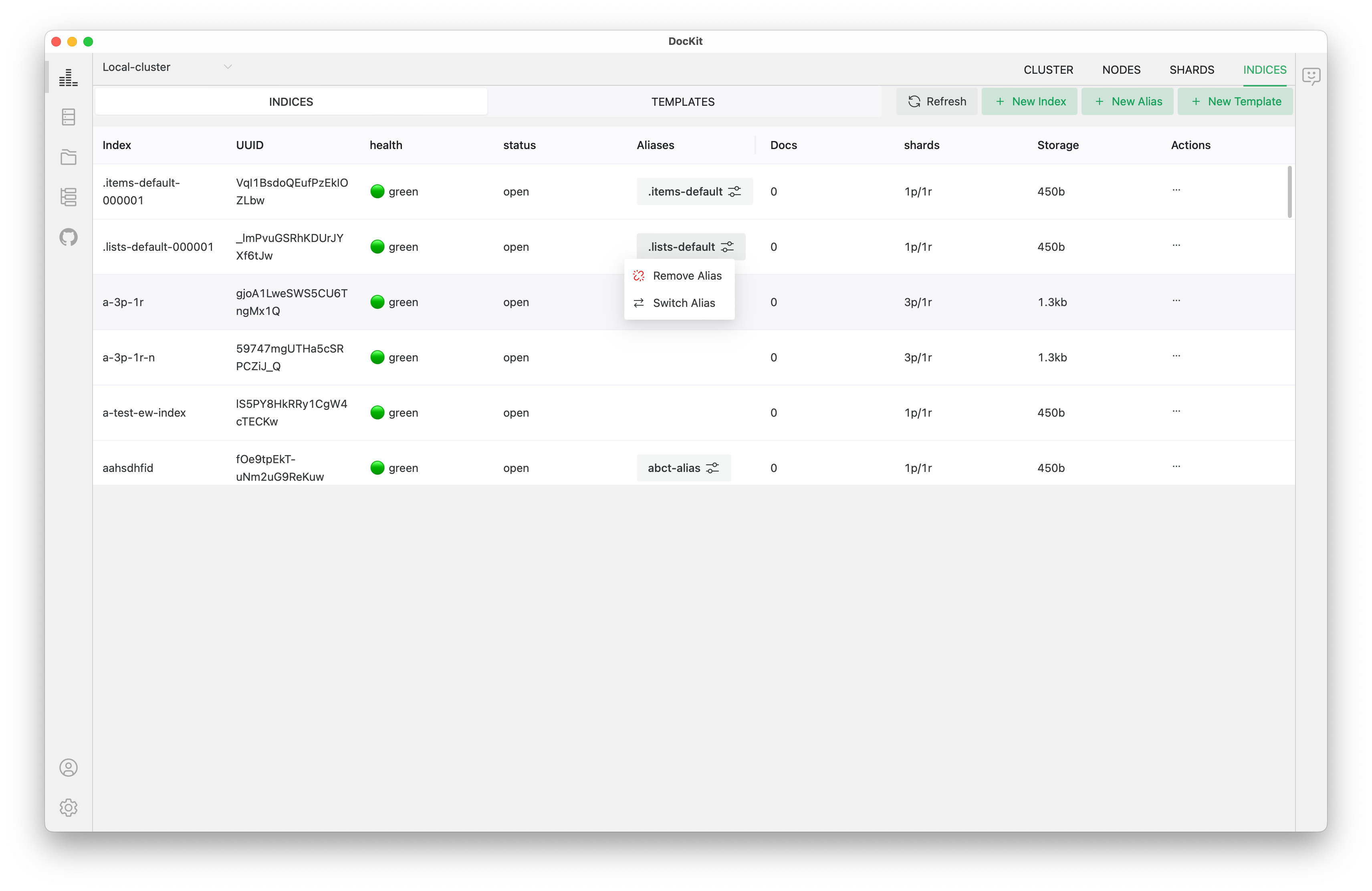
Click the Indices tab to view the indices list, you can view the index name, document count, state, health and other index information, you can also:
- Create the index by clicking the
New Indexbutton on the right top, - Delete the index by clicking the
...in theActionscolumn and select theDeleteoption, - Close/open the index by clicking the
...in theActionscolumn and select theClose/Openoption, - Refresh the index by clicking the
Refreshbutton on the right top. - Remove the alias by clicking the icon in the
Aliasescolumn and select theRemove Aliasoption. - Switch the alias by clicking the icon in the
Aliasescolumn and select theSwitch Aliasoption.
Templates Management & Monitor
Click the Templates tab to view the templates list, you can view the template name, type, version and other template related information. You can also click Create Template button on the right top to create a new template.

Template Types
DocKit supports both template formats:
- Index Templates (composable) — The modern format with priority, multiple index patterns, and component template references
- Component Templates — Reusable building blocks (mappings, settings, aliases) that can be composed into index templates
- Legacy Templates — Older format, mapped to equivalent composable templates when possible
When creating templates, DocKit auto-detects the format based on the Elasticsearch/OpenSearch version.